;
};
Available only in [W\&B Multi-tenant Cloud](/platform/hosting/#wb-multi-tenant-cloud).
This page describes how to manage your conversations with ARIA: starting and resuming chats, queueing follow-up messages, adding context such as runs and images, and giving feedback on responses. It also covers organizing your chat history by renaming, pinning, and deleting conversations.
## Start a new chat
To start a new chat, open ARIA, then click the pencil icon in the upper right corner of the chat window.
You can run multiple chats in parallel at a time. ARIA notifies you when it responds to a chat, even if you have closed the chat window.
Starting a new chat does not delete your previous conversations. To [view previous conversations](/aria/chat#view-chat-history), click **** (**Reveal chat history**) to open the chat history sidebar.
## Send a message
Type a message and press **Enter** to send it.
* Press **Shift+Enter** to add new lines.
* Click **+** to add images.
* To add a run reference, type `` and select a run from the list. Type to filter and fuzzy-search the list.
* For more flexibility, compose a more complex message in a text editor and paste it. Plain text is supported, and pasted `@` characters are not resolved to run references.
To cancel the current operation and *immediately* send the next [queued message](#queue-messages), press the stop icon to the right of the text input.
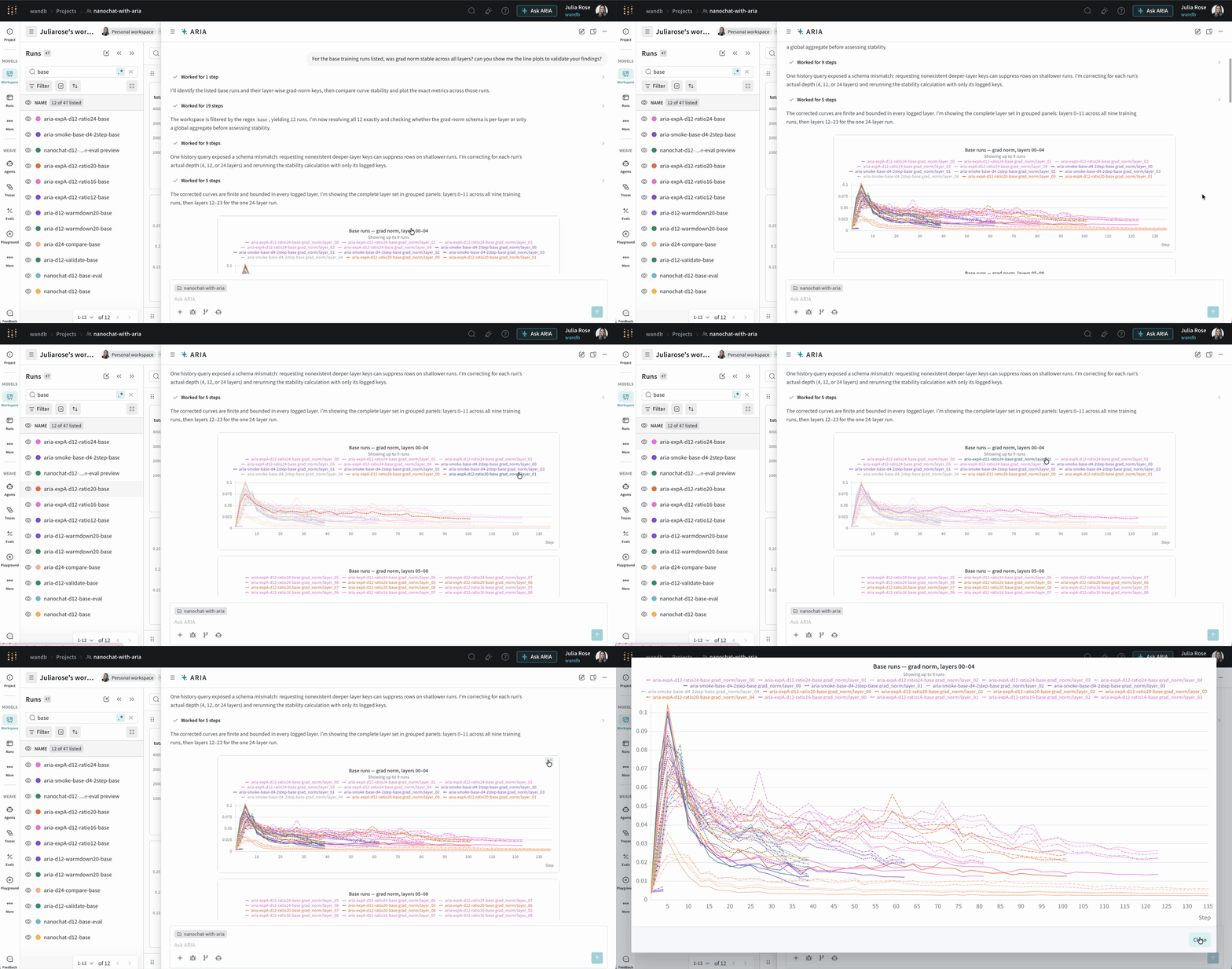
To help you stay in context, ARIA renders line plots and bar charts directly in the chat, with support for full-screen view. Hovering over a run in the workspace's **Runs** tab highlights the run's plots in ARIA, and hovering over a panel in ARIA highlights the run in the **Runs** tab.
## Queue messages
The message queue holds follow-up tasks and questions you send to ARIA while it works. ARIA runs each queued message in order using the full conversation as context. The next message runs as soon as the previous one finishes.
Use the queue to line up several steps at once and step away, rather than returning to the chat to send each one. For example, you might start with a comparison:
While ARIA works, send additional requests to the chat window. W\&B adds pending requests to ARIA's queue.
This example sends two messages at once:
```text title="Queued messages" theme={null}
Chart validation loss against learning rate for those runs.
Write up the comparison as a report I can share with my team.
```
The queue header shows how many messages are waiting. Each queued message has three controls:
* **Pencil icon** (): Edit the message before ARIA runs it. ARIA moves the message into the message box and removes it from the queue, so send it again to requeue it. This control is unavailable while the message box already holds a draft.
* **Up arrow icon** (): Run the message now instead of waiting its turn. ARIA stops what it's working on and runs this message next. The other queued messages keep their order.
* **Trash can icon** (): Delete the message from the queue.
Queued messages keep the context you attached to them, including [run mentions](/aria/chat#add-context-to-a-conversation) and [images](/aria/chat#add-an-image-to-a-conversation).
Queueing begins after your first message in a chat, because a queue needs a conversation to run against. The first message you send, and any message you send to an idle chat with an empty queue, goes to ARIA immediately. Each chat keeps its own queue, and the queues in chats you close keep running.
If ARIA needs a clarifying answer or your permission before it continues, the queue pauses until you respond. To run a queued message without responding first, click the up arrow icon next to it.
## Manage conversations
The following sections describe how to view, rename, pin, and delete your conversations.
### View chat history
To view previous conversations:
1. Open ARIA.
2. Click **** (**Reveal chat history**) to open the chat history sidebar. It's collapsed by default. The same control reads **Collapse chat history** while the sidebar is open.
3. Select a conversation to resume it.
Pinned conversations appear first, under a single **Pinned** header, not grouped by date. Unpinned conversations follow, grouped **Today**, **Yesterday**, **Last 7 Days**, **Last 30 Days**, then by month, then by month and year for conversations older than a year. Within each group, the most recently active conversation appears first.
Hover over a conversation row, or focus it with the keyboard, to reveal three controls:
* **** (**Rename chat**): see [Rename a conversation](#rename-a-conversation).
* **** (**Pin chat** / **Unpin chat**): see [Pin a conversation](#pin-a-conversation).
* **** (**Delete chat**): see [Delete previous conversations](#delete-previous-conversations).
The chat history sidebar's **Customize** section also lists the ARIA automations you've created. See [Use automations with ARIA](/models/automations/create-automations/aria).
### Rename a conversation
By default, a conversation's title is an excerpt of your first prompt.
1. In the chat history sidebar, hover over the conversation you want to rename.
2. Click **** (**Rename chat**). The title becomes an editable field with the placeholder `Enter a title`.
3. Type a title, up to 255 characters, or click **** (**Generate chat title**) to have ARIA read the conversation and write a title that describes what actually happened in it, not just how it started.
4. Press **Enter** or click **** (**Save chat title**) to save. Press **Escape** or click **** (**Cancel rename**) to discard your change.
Clearing the field and saving restores the prompt-excerpt title, falling back to **Untitled conversation** if none exists. Saving whitespace-only input cancels the rename instead of clearing the title.
Renaming, by hand or with **Generate chat title**, only happens when you trigger it. ARIA never retitles a conversation on its own after the first turn.
Renamed titles sync across your open browser tabs. You can also rename a chat from your phone. See [Chat with ARIA](/platform/hosting/monitoring-usage/mobile-app#chat-with-aria) in the mobile app docs.
### Pin a conversation
Pin a conversation to keep it at the top of the chat history sidebar instead of letting it slide down as new chats accumulate.
1. In the chat history sidebar, hover over the conversation you want to pin.
2. Click **** (**Pin chat**). The conversation moves under the **Pinned** header.
3. To unpin, click **** (**Unpin chat**) on a pinned conversation.
There's no limit on how many conversations you can pin, and pin changes sync across your open browser tabs. Pinning affects only your own conversation list, not what teammates with access to the same project see.
### Delete previous conversations
To delete a previous conversation:
1. Open ARIA.
2. Click **** (**Reveal chat history**) to open the chat history sidebar.
3. Hover over the conversation you want to delete, then click **** (**Delete chat**).
4. Click **Delete** to confirm, or **** (**Cancel delete**) to keep the conversation.
## Undock chat window
You can undock the chat window into a separate window, which allows you to view ARIA's response side-by-side with your project data.
To undock the chat, click the undock icon in the upper right corner of the chat window next to the close (**X**) button.
## Add context to a conversation
You can use the `@` symbol to specify a specific run in your prompt. For example, you can ask ARIA to analyze a specific run by including the run's name in your prompt:
```text title="User prompt" theme={null}
Analyze the run @run-20230615_123456-abcdefg and summarize the results
```
## Add an image to a conversation
Click the plus icon (`+`) in the lower left corner of the chat window to add an image to your conversation. You can then ask ARIA to analyze the image or provide information about it.
## Provide feedback
Click the thumbs up or thumbs down icon at the end of the response to provide feedback on ARIA's response. Your feedback helps W\&B improve ARIA's performance and accuracy.
For information about how W\&B handles data usage for ARIA, see [Governance and security](/aria/governance).
 ## Queue messages
The message queue holds follow-up tasks and questions you send to ARIA while it works. ARIA runs each queued message in order using the full conversation as context. The next message runs as soon as the previous one finishes.
Use the queue to line up several steps at once and step away, rather than returning to the chat to send each one. For example, you might start with a comparison:
## Queue messages
The message queue holds follow-up tasks and questions you send to ARIA while it works. ARIA runs each queued message in order using the full conversation as context. The next message runs as soon as the previous one finishes.
Use the queue to line up several steps at once and step away, rather than returning to the chat to send each one. For example, you might start with a comparison: