

The default notebook environment includes the W&B Python SDK, Reports and Workspaces API, marimo, and other commonly used packages.
Install a package
Install packages using either the sidebar or the terminal.- UI
- Terminal
To install a package from the sidebar:
- From the notebook sidebar, select Manage packages ().
- Enter the package name.
- Select Add.
View installed packages
View installed packages using either the sidebar or the terminal.- UI
- Terminal
From the notebook sidebar, select Manage packages ().Select List to view a flat list of installed packages, or select Tree to view their dependency hierarchy. If one package depends on another, the dependency appears as its child in Tree view.The following image shows 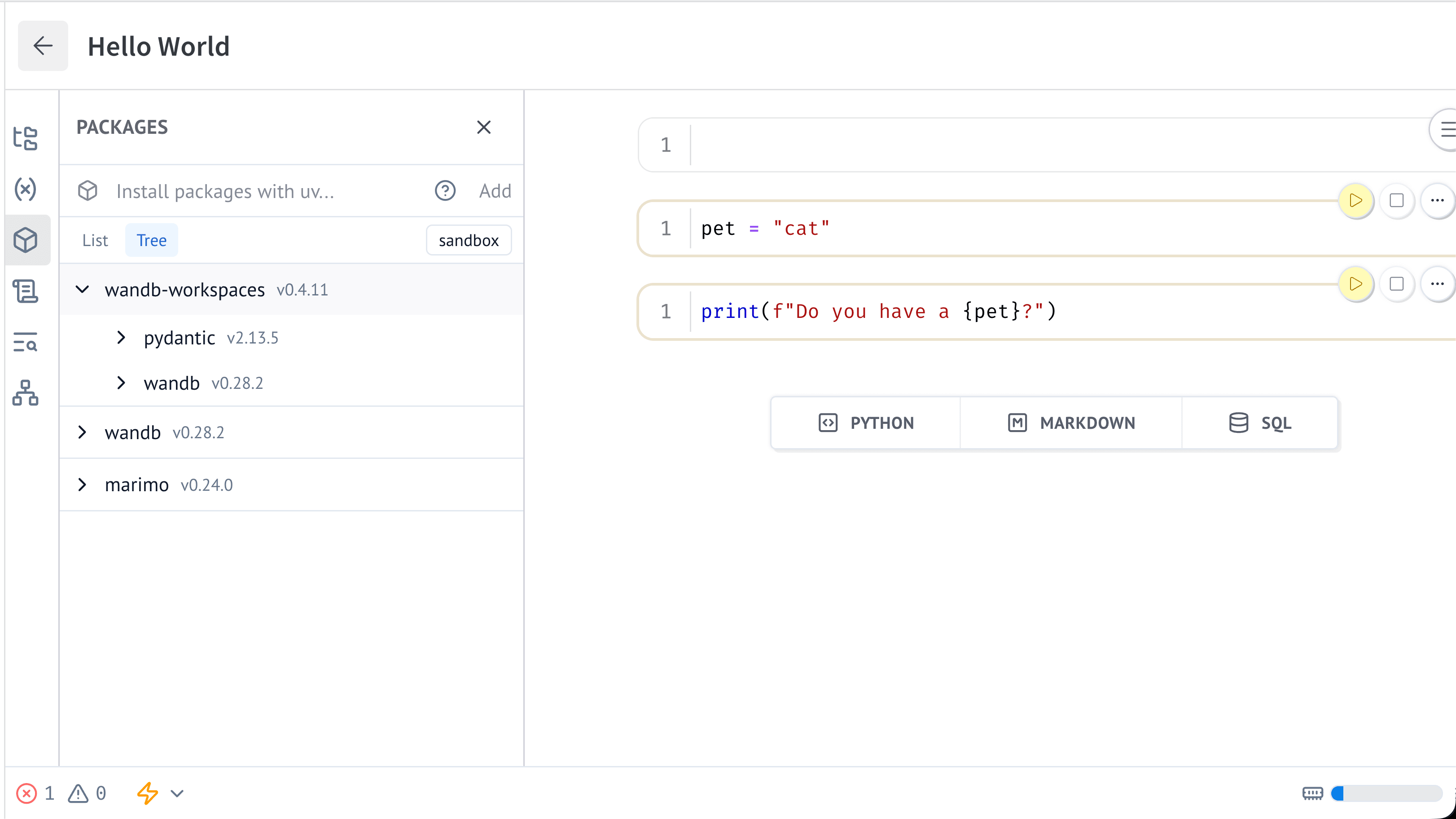
wandb-workspaces in the Manage packages sidebar. Packages nested under it are the dependencies of wandb-workspaces.Update a package
Update an existing package using either the sidebar or the terminal.- UI
- Terminal
- From the notebook sidebar, select Manage packages ().
- Type or search for the package.
- Select Upgrade.
Remove a package
Remove an existing package using either the sidebar or with the notebook terminal.- UI
- Terminal
- Select Manage packages () from the notebook sidebar.
- Find the package you want to remove.
- Select Remove next to the package name.