

- A definition is a global name that a cell creates, such as a variable, function, class, or imported name.
- A reference is a global name that a cell reads from another cell.
Understand cell states
Notebooks track the state of each cell to determine whether it needs to run. The main cell states are stale and blocked.Stale cells
A cell is stale if it hasn’t run with its latest code or inputs. A cell that has never run is also stale. After the cell runs with its current code and inputs, it is no longer stale. A cell becomes stale in any of the following situations:- You edit the cell’s code.
- An upstream cell runs while the notebook uses lazy mode. In this mode, the notebook marks downstream cells as stale instead of running them automatically.
- A Python module that the cell uses changes while lazy module autoreloading is enabled.
Blocked cells
A cell is blocked if the cell or one of its upstream cells is disabled. Blocked cells don’t run automatically, even when their inputs change. To unblock a cell, re-enable the disabled cell that it depends on. The notebook can then run any downstream cells that need updated outputs. For instructions, see Disable or enable a cell.Delete cells
When you delete a cell, the notebook also deletes the global variables that the cell defined. Depending on the runtime settings, the notebook reruns, invalidates, or marks as stale any cells that reference the deleted variables.Define each global name once
Define each global name in only one cell. If two cells define the same global name, the notebook can’t determine a single source of truth for downstream cells. This restriction applies to variables, functions, classes, and imported package names. For temporary variables, prefix the variable name with a single underscore to make it local to the cell. You can also define temporary variables inside a function.Avoid mutations across cells
Avoid mutating objects that multiple cells use. Notebooks don’t track object mutations, so mutating an object doesn’t mark dependent cells as stale. For example, suppose one cell adds a column to a DataFrame defined in another cell. Cells that reference the DataFrame don’t automatically rerun. To keep the notebook state consistent, create a new object and assign it to a new variable. If you must mutate an object, mutate it in the cell that defines it. To learn more, see Variable mutations are not tracked.Inspect variables and dependencies
View variables
Use the Variables explorer to view defined variables, their types, where they are declared, and where they are referenced.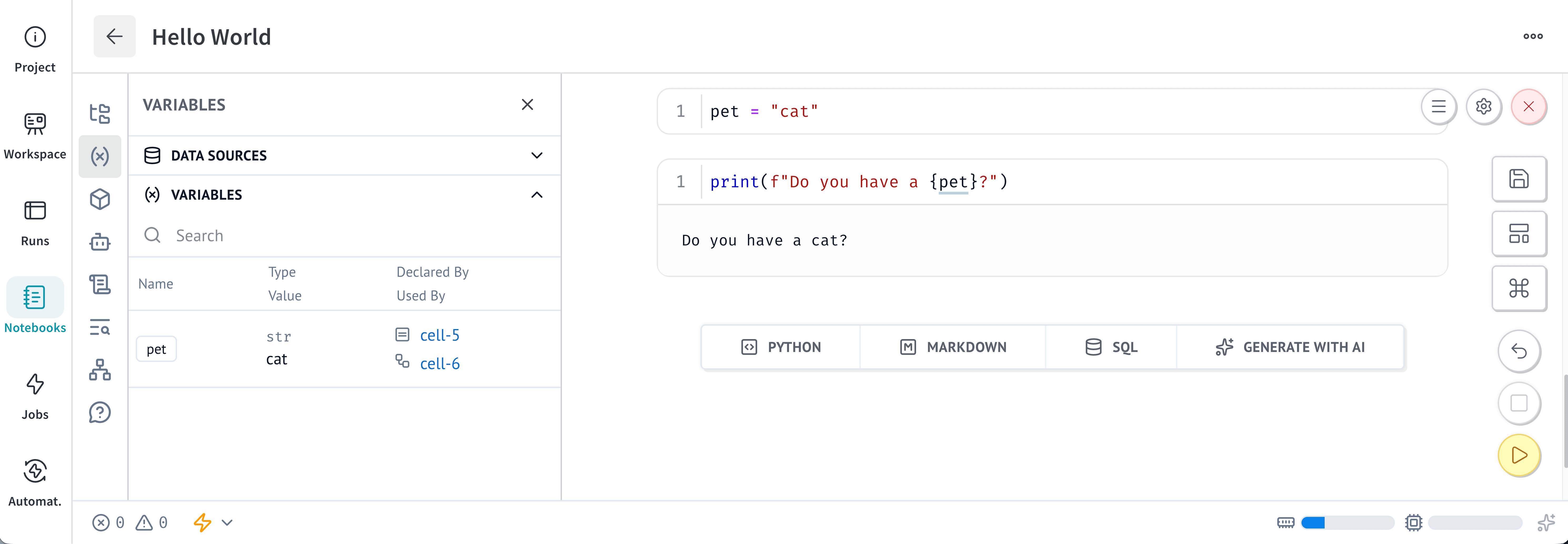
View cell relationships in the minimap
Use the Dependencies panel to inspect relationships between cells:- In the sidebar, select Explore dependencies ().
- Select MINIMAP.
View the dependency graph
Use the Graph view to visualize cell dependencies as a directed acyclic graph (DAG):- In the sidebar, select Explore dependencies ().
- Select GRAPH.